How to transcribe video in DaVinci Resolve, free edition included.
Resolve's built-in transcription lives in the paid Studio edition. If you are on free Resolve, or you want speaker labels and search across a whole project, here is the route that works, step by step.
Free DaVinci Resolve has no transcription. Audio Transcription, Text-Based Editing and the subtitle-from-audio tools are all Studio features. On free Resolve the working route is to transcribe the files locally with a separate tool, mark your selects in the transcript, and bring the cut back into Resolve as an EDL or a timeline file. That route also gives Studio users what the built-in tool lacks: speaker labels and search across every clip in the project.
What each edition of Resolve gives you
DaVinci Resolve comes in two editions. The free one is a full editor, color suite and audio post tool with almost nothing held back. The paid Studio edition adds, among other things, the DaVinci Neural Engine features, and transcription is one of them: right-click a clip in the Media Pool and choose Audio Transcription, or open the Text-Based Editing panel and cut from the text.
On free Resolve those commands are not there. There is no plug-in that adds them, and no setting that unlocks them. If you searched for "davinci resolve free transcription" you have probably already found that out the hard way.
Studio's transcription is good for one clip at a time. What it does not do is label who is speaking, rank anything, or search across a project of thirty interviews in one box. For dialogue-heavy work that is the part you need, which is why plenty of Studio owners also use the route below.
The steps
- Get the camera files, not a Resolve export. Transcription tools read your original media. Point the tool at the folder of interview files, or at a copy on the same drive, so the paths match what Resolve already has in the Media Pool.
- Transcribe locally with speakers labeled. Run the transcription on your Mac. For interviews and panels, pick a tool that does speaker identification, otherwise you will be labeling by hand in a two-hour transcript. Fix names and any technical terms in the transcript once; they carry into every clip name and note from there.
- Mark the selects in the text. Search for the lines you remember, read the ones you do not, and mark the ranges worth keeping. Working in text is where you save the time: you can scan a transcript far faster than you can scrub a clip. If you want the method, start with how to make a stringout.
- Export a timeline for Resolve. The portable format for free Resolve is a CMX 3600 EDL: one event per select, with the clip name and your note in the comment lines. Tools that build timelines for Resolve also write FCPXML, which carries more (multicam clips, angle choices) and imports with File > Import > Timeline.
- Import into Resolve and relink. In the Media Pool, right-click and choose Timelines > Import > AAF, EDL, XML, or use File > Import > Timeline. Point Resolve at the media folder when it asks. Your selects land as a timeline of cuts, in order, with the clip names and notes you wrote in the transcript. From here it is an ordinary Resolve edit.
What an EDL carries, and what it loses
An EDL is the oldest interchange format still in daily use, which is why free Resolve reads it and why it is safe. It carries the cuts, the source timecodes, reel or clip names, and comment lines. It does not carry multicam relationships, color labels or rich notes with formatting. For a selects pass that is almost always fine: the cuts and the names are what you want, and the note is one line anyway.
If your interview is a multicam clip in Resolve, the FCPXML route keeps the angles together. Import it as a timeline the same way and Resolve rebuilds the multicam clip from the XML.
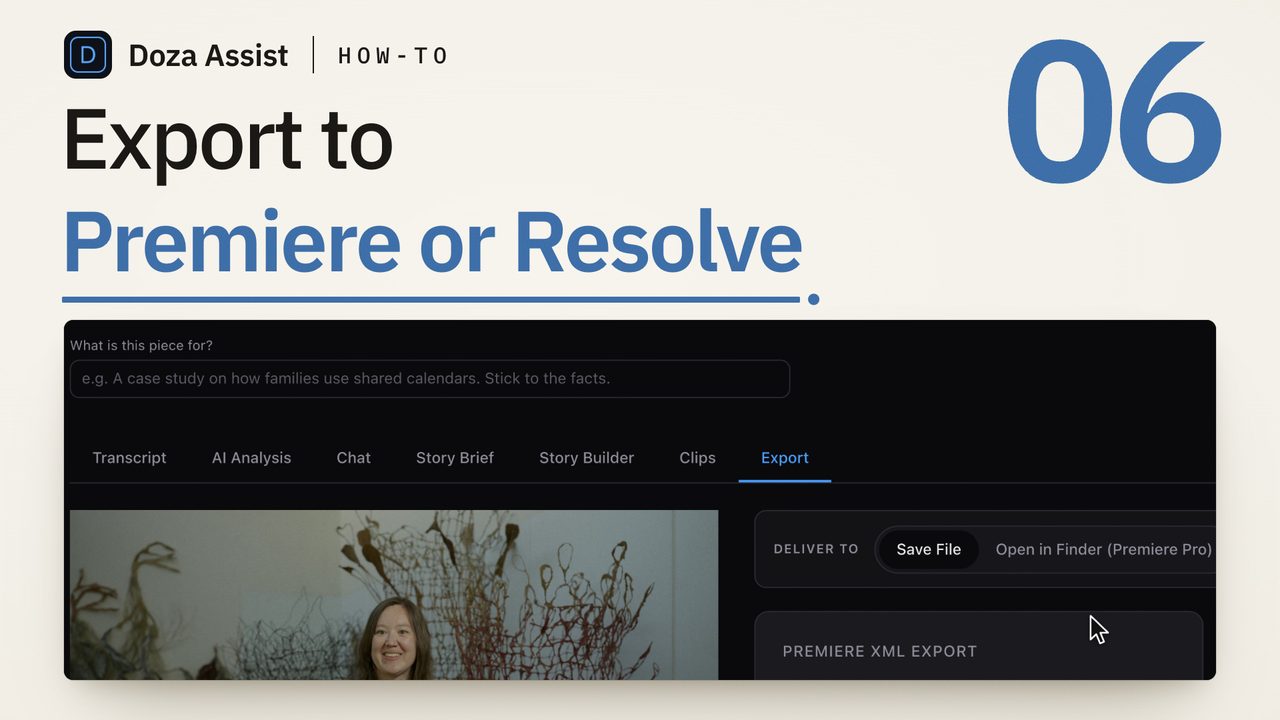
Set "Edit in" to DaVinci Resolve in the project header and every export button in the project switches to Resolve's formats. Doza Assist transcribes the files on your Mac with speakers labeled, finds the strongest soundbites across the whole project, and lets you search every interview from one box. Export sends your marked ranges to Resolve as an EDL with clip names and notes, or as FCPXML when the interview is multicam. On Resolve Studio 18 or later with External Scripting set to Local, the app can place the timeline in your Media Pool directly; on free Resolve you import the file, which takes one dialog. Nothing uploads, and there is no per-minute meter, so a three-hour panel costs the same as a three-minute one.
Common questions
Does free DaVinci Resolve have transcription at all?
No. Audio Transcription and Text-Based Editing are Studio features. The free edition can import subtitle files and show them on a subtitle track, but it cannot generate text from audio.
Can Resolve Studio label speakers?
Not in its transcription panel. The transcript is one stream of text. If you need to know who said what, you label it by hand in Resolve or use a transcription tool that does speaker identification before the footage reaches Resolve.
Will an EDL work with footage that has no timecode?
Yes, as long as the tool writing the EDL uses the same clip names and start times Resolve sees. Camera files without embedded timecode get a start of 00:00:00:00 in both places, so the cuts line up. If the EDL events land on the wrong frames, the usual cause is a frame-rate mismatch between the transcription project and the Resolve timeline.
Is this slower than transcribing inside Resolve?
The transcription itself takes about as long either way, since both run on the same Mac. The time you save is after that: searching across the whole project, marking selects in text, and getting a cut timeline into Resolve in one import instead of building it by hand.
Doza Assist transcribes every interview locally, finds the strongest moments across all of them, then sends your chosen ranges to Final Cut, Premiere, or Resolve. Your video never leaves your Mac.
Free trial: every feature on your first 2 minutes — no account, no card · 30-day money-back guarantee · Requires a Mac with Apple Silicon (M1 or later)