How to import an EDL from a transcript into DaVinci Resolve.
An EDL from a transcript lands in DaVinci Resolve as a timeline of selects in one import. The dialog, the reel-name setting that sends clips offline, and getting handles back.
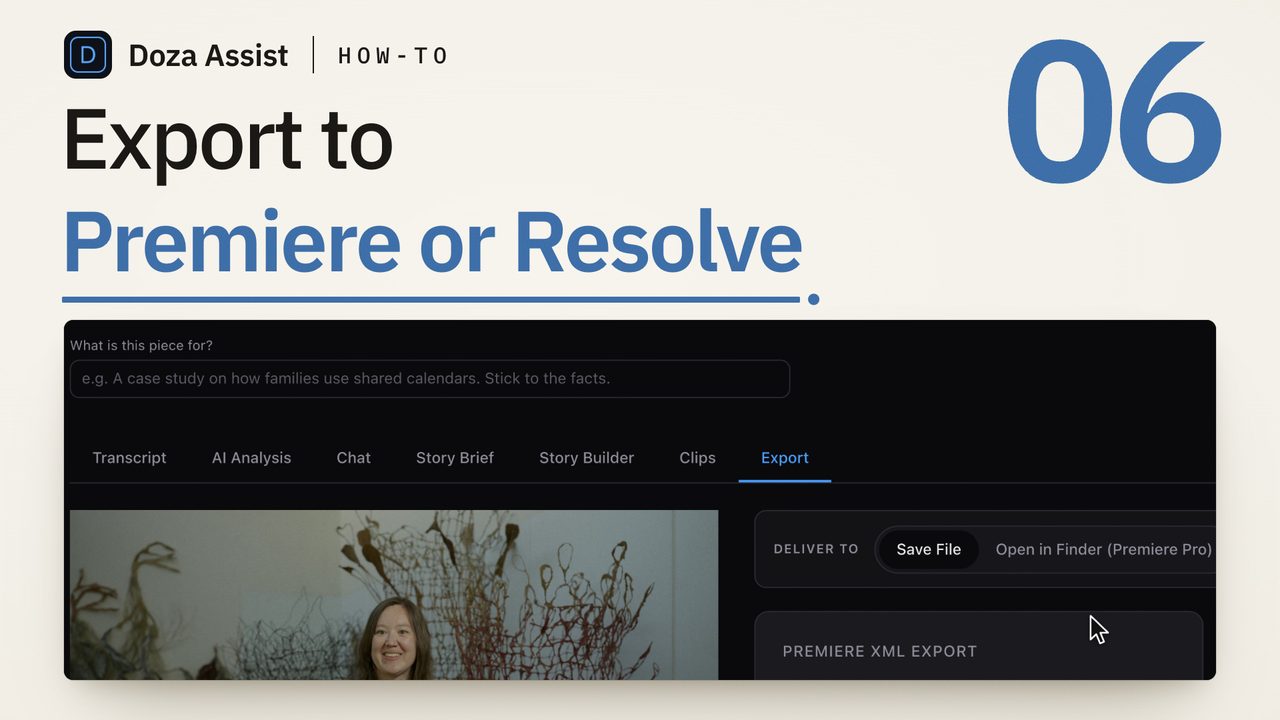
To import an EDL from a transcript into DaVinci Resolve, put the camera files in the Media Pool, set the project to the camera frame rate, then choose File > Import > Timeline and pick the EDL. Resolve matches each event by reel name and source timecode; if clips come in offline, fix the reel-name setting under Conform Options and relink. Works in free Resolve.
What an EDL from a transcript actually is
A CMX 3600 EDL is a plain-text list of cuts. Each event has a reel name, a source in and out timecode, and a record in and out timecode. Comment lines under the event can carry the clip's file name and a note. That is all it is, and that is why every edition of Resolve, free included, reads it without complaint.
When the EDL comes from a transcript, each event is a range of speech you marked in text: a sentence, an answer, a paragraph. The tool that wrote the EDL turned the word timings into source timecodes and lined the events up back to back on the record side. What you import is a stringout of your selects, already in the order you chose, with nothing in between.
Three things an EDL does not carry: multicam relationships (one event, one source), anything beyond the first video track and a couple of audio tracks, and formatted notes. The note lives as a comment line in the file. For a selects pass that is fine. For a multicam interview, use FCPXML instead; Resolve imports it through the same menu and rebuilds the multicam clip.
How do you import an EDL into DaVinci Resolve?
- Bring the camera files into the Media Pool first. Open the Media page and drag in the original interview files, or the folder that holds them. Resolve has to know the clips before it can match events to them. Use the originals, not transcodes, so the file names and embedded timecode match what the transcript tool read.
- Set the project frame rate to the camera frame rate. Open Project Settings and check the timeline frame rate before you import. An EDL only says whether its timecode is drop frame or not; it does not say how many frames per second it means. If the project is at 23.976 and the interview was shot at 29.97, every event lands a little early and drifts further down the list.
- Choose File > Import > Timeline and pick the EDL. The same command is in the Media Pool: right-click an empty space and choose Timelines > Import > AAF, EDL, XML. In the dialog, give the timeline a name and leave the source clip options on, so Resolve links the events to media it already has and brings in any clip it is missing from the folder you point it at.
- Check that every clip is online. Scrub the new timeline. A clip that failed to match shows as a red Media Offline slate. Zero offline clips means the reel names and timecodes lined up; a few usually means one file was renamed or moved; all of them means a reel-name mismatch, covered in the next section.
- Relink anything offline. Select the offline clips in the Media Pool, right-click, choose Relink Selected Clips and point Resolve at the media folder. Resolve matches by file name and timecode. If the timeline itself is the problem, delete it and import the EDL again after fixing the conform setting; the import takes seconds.
- Open the handles. An EDL from a transcript cuts on the first and last word of each select. Every event still references the whole source clip, so you can drag any edit point outward to the breath before the line and the pause after it. Do the pass once, at the top of the edit, before you start moving clips around.
Why do the clips come in offline?
Nearly always reel names. A CMX 3600 event names its source with an eight-character reel field, and Resolve decides what to compare that field against with a project setting: Project Settings > General Options > Conform Options, "Assist using reel names from the". The choices are the source clip's file name, the file path, the Media Pool folder name, or the reel name embedded in the file by the camera.
A transcript tool that writes EDLs for Resolve usually puts the file name in the reel field, in the first eight characters it can fit, and writes the full file name in a FROM CLIP NAME comment under the event. Resolve reads that comment when "Extract reel names from EDL comments" is on. So the setting that works most often is reel names from the source clip filename, with the comment option on. Change it, delete the timeline, and import again.
The other cause is timecode. Resolve matches the event's source timecode against the clip's start timecode. Camera files with embedded timecode line up as long as the transcript tool read the same files. Files with no timecode start at zero in both places, which also lines up. The failure is a mixed set: the transcript was made from a proxy or a re-encode that reset the timecode to zero, while the Media Pool holds the originals with camera timecode. Transcribe the files Resolve will edit.
Where the notes go
Resolve uses the clip name from the EDL and shows it on the timeline. The note you wrote next to each select travels as a comment line in the same event, which Resolve does not turn into a marker. The EDL is a text file; open it next to the timeline and the notes read as a log of why each clip is there, in the same order. If the notes matter in the edit itself, write them as markers in Resolve once the clips are online, or keep the transcript open and search it.
Set "Edit in" to DaVinci Resolve in the project header and every export button in the project writes Resolve's formats. Doza Assist transcribes the interview on your Mac with speakers labeled, you mark selects in the text, and Export writes a CMX 3600 EDL with the clip names and your notes as comments, or FCPXML when the interview is multicam. On Resolve Studio 18 or later with External Scripting set to Local, the app places the timeline in your Media Pool directly; on free Resolve you import the file with the steps above. The clip names match the camera files Resolve already has, so the usual result of step four is nothing offline. Nothing uploads at any point.
Common questions
Does free DaVinci Resolve import EDLs?
Yes. EDL, FCPXML and AAF import are in the free edition. What free Resolve lacks is transcription of its own, which is why the EDL is built elsewhere; the route from a local transcript to a Resolve timeline is in how to transcribe video in DaVinci Resolve, free edition included.
Why does every clip land a few frames off?
Frame rate. An EDL carries timecode, not a frame rate, and Resolve reads it at the project's rate. If the timeline rate differs from the rate the transcript tool used, each event is slightly wrong and the error grows down the list. Set the project to the camera frame rate, delete the timeline and import again.
Can an EDL carry a multicam interview?
No. Each event references one source, so a multicam clip arrives as whichever angle the file names. For a two-camera interview, export FCPXML from the transcript tool and import it with the same File > Import > Timeline command; Resolve rebuilds the multicam clip from the XML with its angles intact.
Do I lose anything by cutting from an EDL instead of inside Resolve?
Nothing you cannot add back. The EDL gives you the order and the cuts; the full source clips are still in the Media Pool, so trimming, handles, angle choices and color all happen in Resolve as usual. What you gain is that the content decisions were made in text, across the whole interview, before the timeline existed.
Doza Assist transcribes every interview locally, finds the strongest moments across all of them, then sends your chosen ranges to Final Cut, Premiere, or Resolve. Your video never leaves your Mac.
Free trial: every feature on your first 2 minutes — no account, no card · 30-day money-back guarantee · Requires a Mac with Apple Silicon (M1 or later)