How to export a Final Cut Pro project as XML.
File > Export XML is one command, and what you select first is the choice that matters. Which XML to export, which version, what the file carries and what it leaves behind.
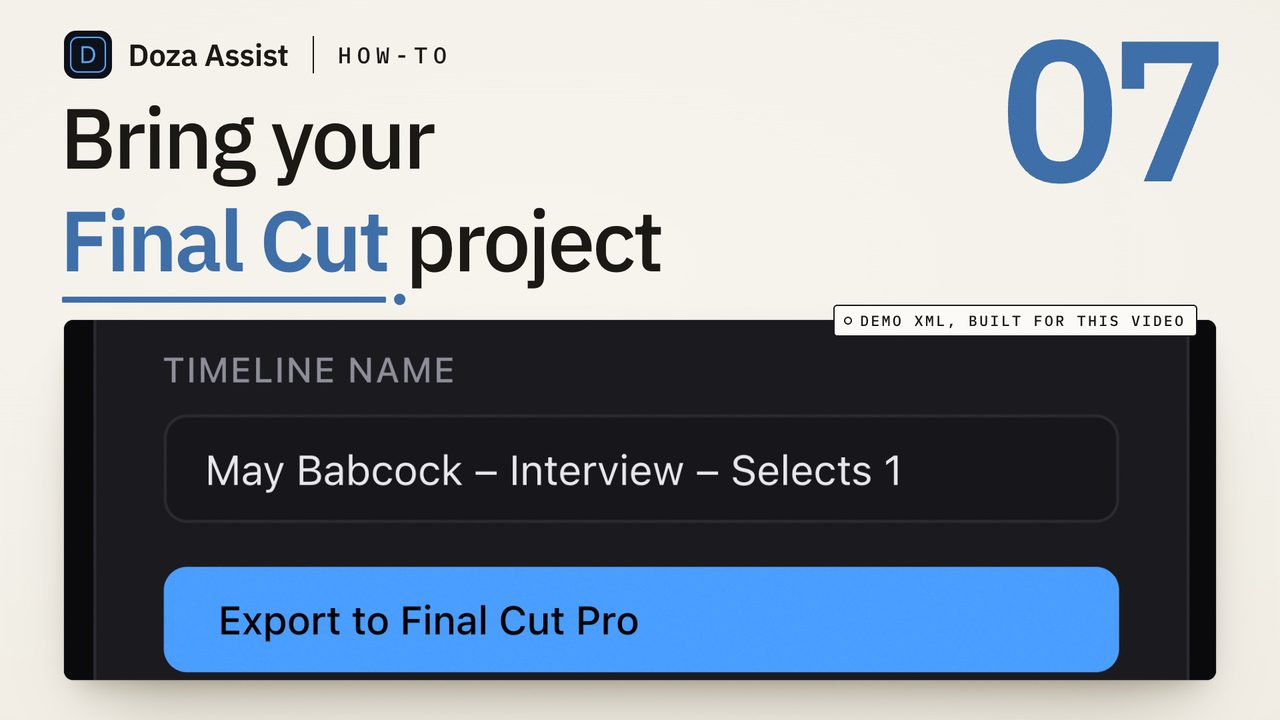
To export a Final Cut Pro project as XML, select the project in the browser, choose File > Export XML, leave the XML version on Current, and save. You get an FCPXML file (a .fcpxmld package on current versions) describing the timeline, its clips, keywords and markers, pointing at your media in place. Select the event instead when the other tool needs every clip.
Which XML do you export: the project, the event or the library?
File > Export XML exports whatever is selected when you choose it, and that selection is the decision that matters. The rest of the dialog has sensible defaults.
- A project (select it in the browser) exports that timeline and the clips it uses. This is what you send to a tool that needs the edit: a conform, a color pass, a transcript of what is in the cut.
- An event (select it in the Libraries sidebar) exports every clip in the event, every project in it, and the keywords, ratings and markers on all of them. This is what you send to a tool that needs the footage, because a project only knows the ranges you already cut with.
- The library exports every event at once. Fine as a backup of the structure; too much for most hand-offs.
- Selected clips in the browser export just those clips, wrapped in an event. Pick your three interview multicams, export, and the receiving tool sees only those.
For transcription and finding, export the event or the clips. For sending a timeline somewhere, export the project. When in doubt, export the event: it contains the project too.
The steps
- Make the selection first. Click the project in the browser, the event in the sidebar, or the clips you want. Final Cut Pro greys out Export XML if nothing useful is selected, which is the most common reason the menu item looks broken.
- Break apart compound clips you need read. If a clip in the selection is a compound clip, choose Clip > Break Apart Clip Items before exporting. The XML can describe a compound clip, but many tools outside Final Cut Pro cannot read inside one, and the multicam or sync clip you care about may be hiding in there.
- Choose File > Export XML. Name the file after the event or project so you can tell exports apart later. The Metadata menu picks which metadata fields come along; the default is enough for an edit or a transcript.
- Leave XML version on Current. Current is the newest version your Final Cut Pro writes; Final Cut Pro 11 writes 1.13 or 1.14 depending on the release. Pick an older version only when the receiving tool's documentation asks for one, and expect Final Cut Pro to drop any feature that version does not know about.
- Save it somewhere you will find it. The result is a .fcpxmld package on current versions, which the Finder shows as one file, or a single .fcpxml file on older ones. Both are tiny, because the media is not inside. Drag the package into the other application as a whole; do not pull out the Info.fcpxml by hand unless the tool asks for that.
- Keep the media where it is. The XML references each file by its path. If the footage is managed inside the library, the path points inside the library bundle, which is fine on this Mac. If you move or rename media between export and import, the receiving tool will report it missing.
- Check the import on the other side. Open the file in the tool and confirm the clip count, the frame rate and that the multicam clips arrived as multicam. If something is missing, the fix is nearly always to export the event instead of the project, or to break apart a compound clip.
What the XML carries, and what it does not
FCPXML describes decisions, not pictures. In the file you get formats (frame size and rate), assets (where each media file lives and what it contains), and then the structure that uses them: clips with in and out points, projects with their spine and connected clips, multicam and synchronized clips with their angles and active audio, keywords, keyword ranges, favorites and rejects, markers, notes and roles.
What it does not carry is the media itself, render files, proxies, or anything a plug-in draws on the picture. An effect is referenced by name; if the tool at the other end does not have it, the clip comes in without it. Captions ride along as a caption track on the project. The upshot is that an 80 GB shoot leaves Final Cut Pro as a few kilobytes, which is why the format is the standard way to hand a cut, or a pile of footage, to another application without copying anything.
When the export is not enough
Export XML solves the hand-off. It does not solve the finding problem. Once an interview event is in another tool, you still have to read it: who said the line about the flood, which of four takes is the clean one, what the set of interviews adds up to. Final Cut Pro 11 can transcribe a timeline into captions, which you can search in the Timeline Index, but captions belong to one project and carry no speaker labels. If the goal is a transcript you can search and mark across every interview, the XML is the first step, and the second is a transcript tool that reads the XML and sends a cut back. A stringout built from that pass is the usual result.
Doza Assist is a local-first AI editing assistant that reads the file this guide produces. Drop the .fcpxml or .fcpxmld export onto the dashboard, versions 1.8 to 1.14, and it reads the media in place, multicam and synchronized clips included, and transcribes on your Mac with speakers labeled, no upload. You do not need a scratch timeline: select the multicam clips in the browser, export, and drop the file in; if the export holds several, a chooser makes each one its own project. Mark the moments in the transcript and Export sends a pre-cut timeline straight back to Final Cut Pro with keyword ranges and chapter markers, multicam container and angles intact. Compound clips are the one thing it will not read, so break them apart first; the app tells you if it meets one.
Common questions
Should I export the event or the project?
The project when the other tool needs the edit; the event when it needs the footage. A project export only includes the clips in that timeline and the ranges you used. A transcription or logging pass wants the whole event, and the event export carries the project too, so it is the safer default.
What is the difference between .fcpxml and .fcpxmld?
Same contents, different wrapper. A .fcpxml is one text file. A .fcpxmld is a macOS package, a folder the Finder shows as a single file, holding the XML as Info.fcpxml plus any supporting resources. Current versions of Final Cut Pro write the package; choosing an older XML version in the export dialog gets you the single file.
Does the XML include my media?
No. It references each media file by path and describes what to do with it. That is why the file stays small no matter how large the library is, and why the receiving application needs the media to be where the XML says it is.
Why does my export open with missing or offline clips?
Either the media moved after the export, or the tool reading it cannot read a clip type in the file. Check the paths first: put the files back and import again. If the paths are right, look for compound clips in the selection, break them apart in Final Cut Pro, and export again.
Can I export XML for Premiere Pro or DaVinci Resolve?
DaVinci Resolve imports FCPXML directly, so a Final Cut Pro export opens there with File > Import > Timeline. Premiere Pro does not read FCPXML; its "Final Cut Pro XML" is the older Final Cut Pro 7 dialect, a different format. A tool that sits between the two needs to write Premiere Pro's dialect itself.
Doza Assist transcribes every interview locally, finds the strongest moments across all of them, then sends your chosen ranges to Final Cut, Premiere, or Resolve. Your video never leaves your Mac.
Free trial: every feature on your first 2 minutes — no account, no card · 30-day money-back guarantee · Requires a Mac with Apple Silicon (M1 or later)