A Final Cut Pro multicam interview workflow, start to finish.
Sync two cameras and a recorder into one multicam clip, cut it from the transcript before you open the Angle Viewer, and round-trip it without flattening. The settings that matter.
A Final Cut Pro multicam interview workflow has three parts: sync the cameras and the recorder into one multicam clip with audio sync, pick the clean audio angle, and cut the interview from a transcript before you touch the Angle Viewer. Decide what is said first, which camera shows it second. Keep the multicam clip intact all the way through so angle switching stays available until the last pass.
Why the multicam clip is the unit of work
The standard interview shoot arrives as several files describing one moment: a wide, a tight, sometimes a third camera on the interviewer, and a lav and a boom in a separate recorder. Final Cut Pro's answer is the multicam clip, a container that holds every source as a named angle, synced once, that the timeline treats as a single clip. Cut it like any other clip, and switch which camera is showing at any point without affecting sync. The glossary entry on multicam and sync clips covers the containers in detail.
Two things go wrong when editors skip the container. They cut from one camera and stack the other on top, so every trim has to be made twice. Or they flatten the multicam clip early and lose the ability to hide a shortened answer behind an angle change, which is the main reason a second camera was there.
The other trap is order of operations. Editors open the Angle Viewer on day one and start switching cameras on a two-hour interview nobody has decided how to cut. Angle choices on lines that will not survive are wasted. Choose the lines first, from text. Then choose the camera.
The steps
- Rename the cameras before you sync. Select each camera's clips in the browser, open the Info inspector, and set Camera Name to something you will recognize in the Angle Viewer ("Wide", "Tight", "Recorder"). Final Cut Pro groups angles by this field, so a shoot where both cameras say "Camera 1" needs the names fixed now, not after the clip exists.
- Make the multicam clip with audio sync. Select every clip from the interview, including the recorder files, and choose Clip > New Multicam Clip. Leave Use Audio for Synchronization checked. In the custom settings, set Angle Assembly to Camera Name and Angle Synchronization to Automatic unless every device was jammed to the same timecode, in which case Timecode is frame-exact.
- Check the sync and set the audio angle. Double-click the new multicam clip to open it in the Angle Editor. Confirm the waveforms line up across angles, then set the recorder as the audio angle (the speaker icon on the angle name). The camera scratch tracks are now silent in every cut you make, which is what you want. Set the monitoring angle to the wide for the logging pass.
- Cut the content from the transcript, not the pictures. Append the multicam clip to a new project and make the content decisions: which answers stay, which lines open and close, where the cuts fall. For a long interview, that is a text job: read the whole thing, mark the keepers, build the selects in order. The next section is about where that transcript comes from.
- Switch angles in the Angle Viewer on the assembled cut. Open the Angle Viewer (Shift+Cmd+7) and click the video-only switching button at the top, so the audio angle you set stays put. Press 1 through 9 to cut to that angle at the playhead; Option-click an angle to switch the current segment without adding a cut. Take the tight camera on the emotional beat and the wide when the subject gestures, and use an angle change to cover any join where you shortened an answer.
- Tidy the through edits last. Every angle cut is a through edit, drawn as a dashed line, and a shortened interview collects dozens. Where two neighbors show the same angle, select the dashed edit and press Delete to join them. Leave the multicam clips as multicam; Break Apart Clip Items is for the day the project is locked and someone needs flat clips, and that day may never come.
Where the transcript comes from
Final Cut Pro 11 can transcribe a timeline into captions with Edit > Captions > Transcribe to Captions. For a multicam interview it has two limits. It transcribes whatever audio the timeline is playing, so it is only as good as your audio angle choice, and it produces captions in reading-length chunks with no speaker labels. The Timeline Index lets you search the caption text, which is useful, but you still cannot read a two-hour panel as paragraphs with a name on each one, and you cannot mark selects in the text and get a timeline back.
The route that keeps the multicam clip intact is the XML one. Select the multicam clips in the browser and choose File > Export XML. The file describes the multicam container with its angles and its active audio, so a tool reading it can transcribe the recorder angle rather than a camera scratch mic, and can send a cut back that references the same container. How to export a Final Cut Pro project as XML covers the choices, and the short version is: export the clips or the event, break apart any compound clip first, and keep the media on the same drive.
Whatever comes back should be multicam. If a tool returns flat clips from a single camera, you have lost the angle switch the shoot paid for and will rebuild the cut by hand. Ask any tool that question before an interview series goes through it.
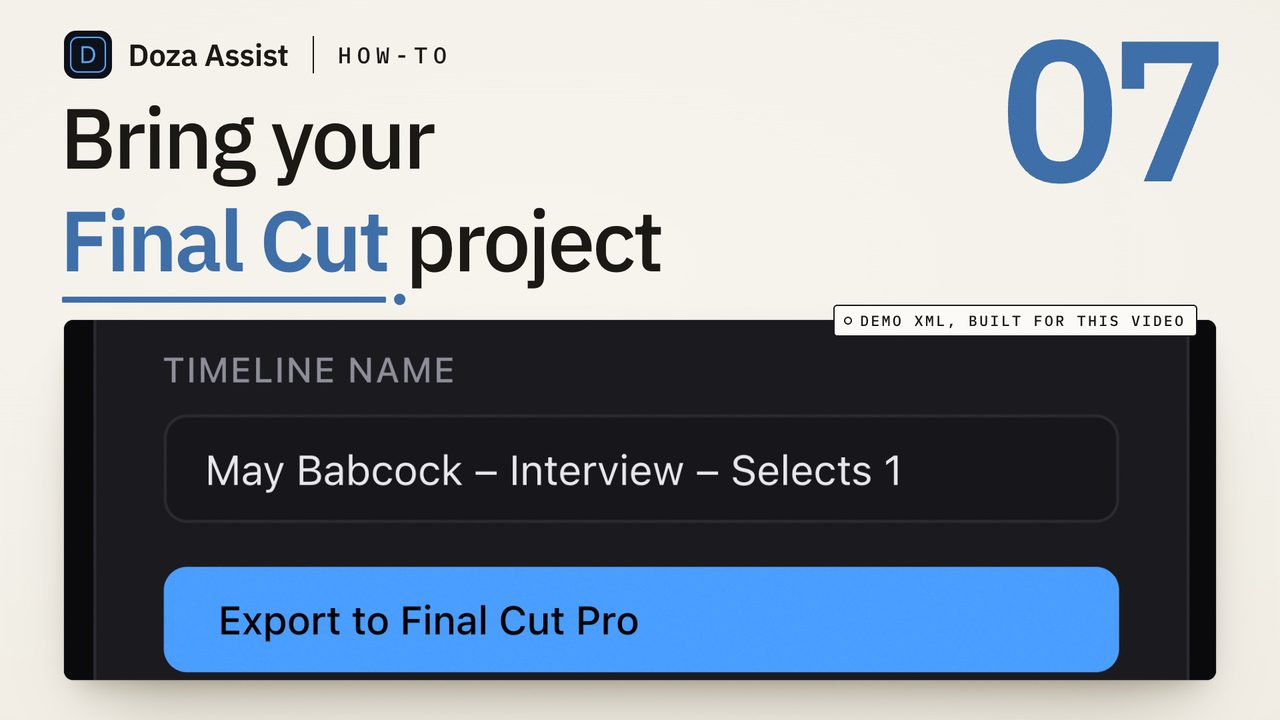
Doza Assist is a local-first AI editing assistant that reads the FCPXML you export, multicam and synchronized clips included, and transcribes the interview on your Mac with every speaker labeled. Nothing uploads. Read the whole interview as paragraphs, click any word to land on its frame, ask the interview for the strongest lines on a topic, and mark the selects in the text. Export sends a pre-cut timeline straight to Final Cut Pro, which opens it automatically, with keyword ranges on the source clips and chapter markers; the multicam container comes back as multicam with its angles intact, so step five above happens on a cut that already has the right lines in the right order. Compound clips are the one thing it will not read, so break them apart before you export.
Common questions
Should I use a multicam clip or a sync clip for a one-camera interview?
A sync clip. Synchronize Clips locks the camera to the recorder audio in one container without an angle-switching interface, which is lighter when there is nothing to switch between. Use a multicam clip when there are two or more cameras you will cut between. Both export in FCPXML as their own clip types, so either survives a round trip through a tool that reads them.
Why did my cameras land in the same angle, or in the wrong order?
Angle Assembly decided by a field you did not set. With Camera Name chosen, every clip with the same name joins one angle, so two cameras that both report a default name are merged. Set Camera Name per clip in the Info inspector before creating the multicam clip, or rebuild it with the names fixed; nothing is lost, because the container only references your media.
Can I change the audio angle after I have started cutting?
Yes, and for a segment or for the whole clip. In the timeline, select the multicam clip and choose Clip > Active Audio Angle to change one segment; in the Angle Editor, change the audio angle once and new cuts from that clip use it. Setting it in the Angle Editor before you cut saves fixing it segment by segment later.
When should I flatten the multicam clips?
As late as possible, and often never. Break Apart Clip Items turns each multicam segment into an ordinary clip and takes the angle switch away for good. Final Cut Pro exports, shares and archives a multicam timeline fine; flatten only when a downstream tool or a collaborator cannot read multicam clips, and keep a copy of the project from before you did it.
Doza Assist transcribes every interview locally, finds the strongest moments across all of them, then sends your chosen ranges to Final Cut, Premiere, or Resolve. Your video never leaves your Mac.
Free trial: every feature on your first 2 minutes — no account, no card · 30-day money-back guarantee · Requires a Mac with Apple Silicon (M1 or later)