How to search the dialogue in your clips in Final Cut Pro.
Final Cut Pro's browser search reads clip names, notes, keywords and markers, never the audio. The scratch-project route that makes dialogue searchable, and where it stops.
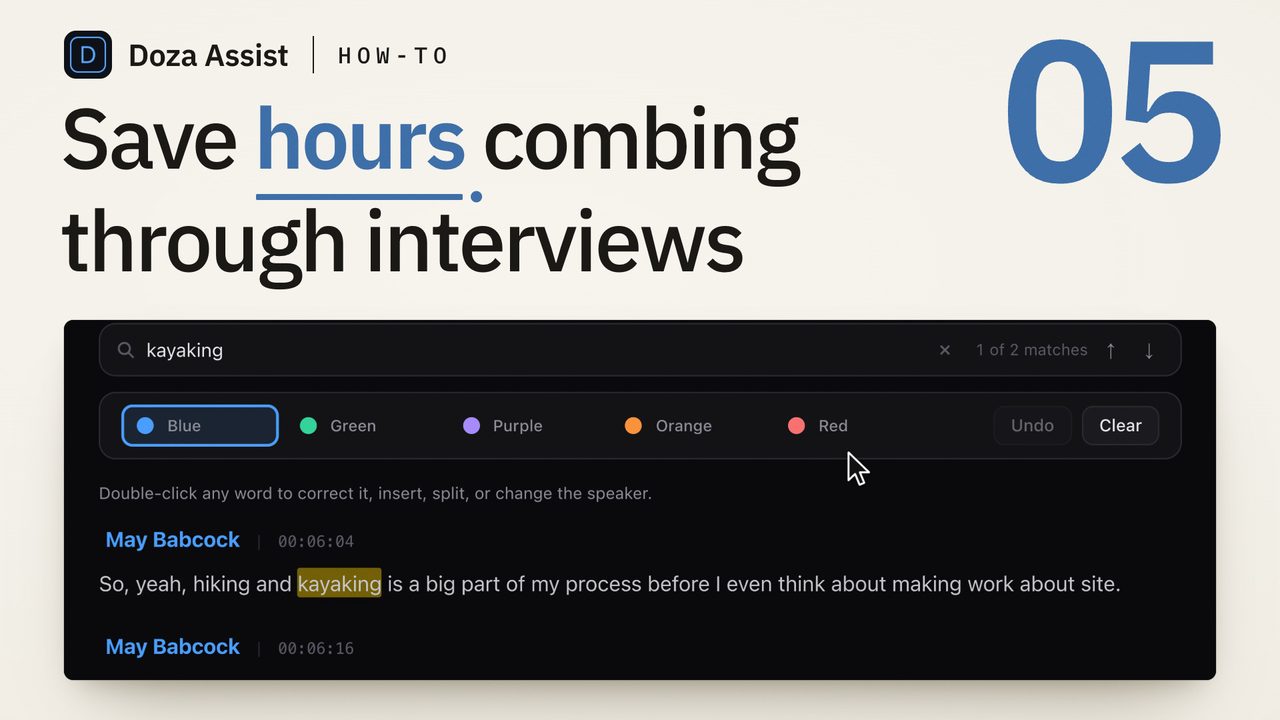
To search dialogue in clips in Final Cut Pro, the words have to exist as text, because the browser search reads clip names, notes, keywords and markers, never the audio. Append every interview clip to one scratch project, run Edit > Captions > Transcribe to Captions, and search the captions in the Timeline Index. It finds the caption, not the word, one project at a time.
Why the browser cannot find a line you heard
Final Cut Pro's browser has a search field and, behind the filter button beside it, a Filter window with a stack of criteria: text, ratings, media type, keywords, people, format, date, roles. The text criterion matches clip names and the Notes column. The keywords criterion matches the keywords you applied. Markers show up in the Timeline Index. All of it is metadata somebody typed, and none of it is what the subject said on camera.
So "search dialogue in clips" is really two questions. Where in Final Cut Pro can spoken words become text, and how do you get from a hit in that text back to a frame you can cut? Since version 11 the first answer is Transcribe to Captions. The second is the Timeline Index, with a shortcut back to the browser. The method below strings them together so one project becomes the dialogue index for a whole event.
How do you search dialogue in clips in Final Cut Pro?
- Check what your search is actually reading. Type a word from an answer you remember into the browser search field. If nothing comes back, the word is not in a name, a note, a keyword or a marker, and no filter setting will change that.
- Build one scratch project out of every interview clip. Choose File > New > Project, name it something like "Dialogue index", then select every interview clip in the event and press E to append them in one pass. Leave them whole and untrimmed. This is a stringout of raw footage, and its only job is to hold the text.
- Run Transcribe to Captions on the scratch project. With the scratch project open, choose Edit > Captions > Transcribe to Captions and pick the language if Final Cut Pro asks; check the language list in your version before you plan around it. The work runs in the background on the Mac and lands as a caption track above the primary storyline.
- Search the dialogue in the Timeline Index. Press Cmd+Shift+2 to open the Timeline Index, click Clips, then click Captions at the bottom of the pane. Type a word into the search field and the list shrinks to the captions that contain it; click one and the playhead jumps to it. The match is to the caption, a sentence or so of text, so a short scrub inside it finds the exact word.
- Read outward before you mark anything. The caption that matched is rarely the whole thought. Step back a caption or two to where the answer starts and forward to where the voice falls, then set the range in the scratch timeline with I and O. The caption text shows where a thought begins and ends more honestly than the waveform does.
- Mark the hit so you can find it again. Press M on the range and name the marker with the words of the line or the subject of the answer. Markers appear under Tags in the Timeline Index and search there, so your own picks become a second, faster index. To mark the source clip instead, press Shift+F to reveal it in the browser, select the matching range, and give it a keyword with Cmd+K; marking selects with keyword ranges covers what that buys you.
- Cut from the hit. With the range still selected in the scratch project, press Cmd+C, open the real project, park the playhead and press Cmd+V, or press E to append. Clips pasted between projects keep their source links, so the edit in the real project is a normal edit on the original media. The scratch project stays as it is, the index for the next line.
Where the native route stops
Four things show up as soon as the footage is more than one clip.
The index is one project. The Timeline Index searches the project that is open, so the scratch project has to hold everything you want to search, and a second event or a second library needs its own scratch project and its own transcription pass.
Captions belong to the scratch project, not to the clips. Append the same clip into your real project and it arrives silent; the captions stayed behind. That is why the method keeps you cutting from the scratch project. New footage is not in the index until you append it, select it, and run Transcribe to Captions again.
Nobody is labeled. A caption track is one stream of text. In a two-person interview you can usually tell who is speaking from what is said; on a panel you cannot, and "everything the second guest said about the budget" is not a search Final Cut Pro can run.
The hit is a caption, not a word. Each result is a reading-length chunk timed for display rather than for editing, and the playhead lands at its start. For a word-level trim it means scrubbing, every time. How to transcribe an interview in Final Cut Pro goes into what captions are and are not as a transcript.
None of that argues against the scratch project. For a single interview it is the fastest way to get a searchable text of the footage without leaving Final Cut Pro. It stops paying when the event is six interviews, three of them panels, and the question is not "where did she say flood" but "who said the thing about the morning after, and did anyone say it better."
Doza Assist is a local-first AI editing assistant that makes the dialogue in your event searchable before any of it goes into a timeline. Export the event from Final Cut Pro with File > Export XML and drop the FCPXML into the app; it reads the media the file points at, multicam and synchronized clips included, and transcribes it on your Mac with every speaker labeled by AI Speaker ID. One search box reads across every interview in the project, or every interview in a collection, and clicking any word puts the playhead on that frame. For the lines you cannot name, AI Chat answers a plain-words question with playable, timecoded clip cards. Mark the ranges you want and Export sends a pre-cut timeline straight into Final Cut Pro, which opens it automatically, with keyword ranges on the source clips and chapter markers; a multicam clip comes back as multicam with its angles intact. Nothing uploads.
Common questions
Can Final Cut Pro search the audio in browser clips directly?
No. The browser search and the Filter window read clip names, notes, keywords, markers and other typed metadata. Spoken words have to become text first, and in Final Cut Pro that happens in a project with Edit > Captions > Transcribe to Captions, which is why the method puts every interview clip into one scratch project before searching.
Why does my search find nothing even though I know the word was said?
Because the word is in the audio and not in any text field. Final Cut Pro matches against names, notes, keywords and markers only. Either transcribe the clips to captions in a scratch project and search the Timeline Index, or type the line into a marker or the Notes column so the browser search has something to match.
Does the Timeline Index search captions across every project?
No. It searches the project that is open. Putting every interview clip in one scratch project makes one project cover the whole event, which is as wide as a caption search in Final Cut Pro gets. A second event or library needs its own scratch project and its own transcription pass.
Do the captions follow a clip into my real project?
No. Captions live on the timeline where they were made. The same source clip appended to another project has no captions until you transcribe that project too. Cut by copying ranges out of the scratch project, or keyword the source clip in the browser so the mark, if not the text, travels with it.
Does Transcribe to Captions label who is speaking?
No. The caption track is one stream of text with no speaker names, so a panel or an interview with an off-camera interviewer comes out as one voice. A speaker-labeled transcript is a separate tool's job, and the one described above round-trips through FCPXML so your library is untouched.
Doza Assist transcribes every interview locally, finds the strongest moments across all of them, then sends your chosen ranges to Final Cut, Premiere, or Resolve. Your video never leaves your Mac.
Free trial: every feature on your first 2 minutes — no account, no card · 30-day money-back guarantee · Requires a Mac with Apple Silicon (M1 or later)