How to transcribe an interview in Final Cut Pro.
Final Cut Pro 11 can turn timeline audio into captions. A searchable, speaker-labeled transcript of your whole interview is a different job. Here is how to get both, and when you need which.
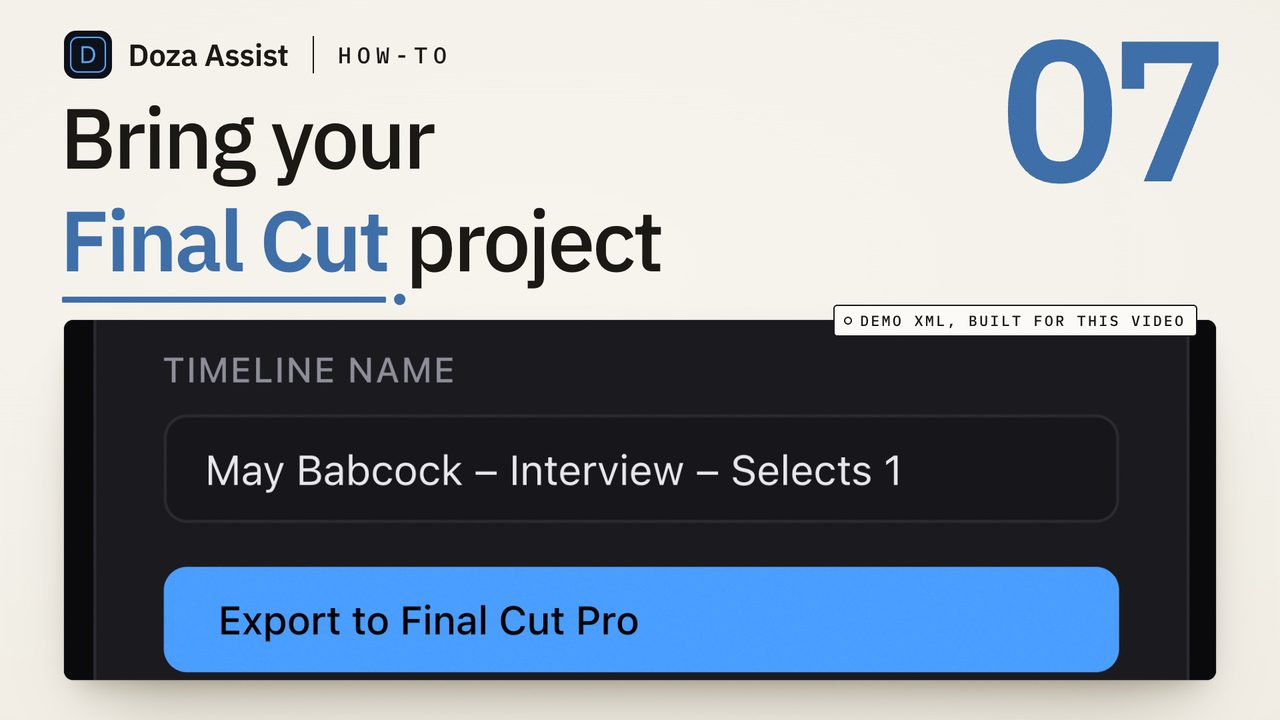
To transcribe an interview in Final Cut Pro 11, put the clip in a timeline and choose Edit > Captions > Transcribe to Captions. You get a caption track you can read and search in the Timeline Index. For a transcript with speaker labels, word-level timecodes and search across the whole interview, export the event as FCPXML and transcribe it locally with a tool built for dialogue, then send the cut back.
What Final Cut Pro can do on its own
Since version 11, Final Cut Pro has a built-in transcription command. It runs on the Mac, works on whatever is in the current timeline, and writes the result as captions in a caption role. For a single talking-head clip that needs subtitles, it is quick and it is free.
Three limits matter for interview work. First, it transcribes the timeline, not the browser, so the material has to be laid into a project before you can read it. Second, the output is captions: short chunks timed for reading on screen, not paragraphs with a name on each one. Nobody in the caption track is labeled, and two people talking over each other come out as one stream of text. Third, caption text searches in the Timeline Index, which finds the caption, not the word. You still scrub to the moment.
Check the language list in your version before you plan around it. Apple has added languages in updates, and the list changes.
The steps
- Put the interview in a timeline. Make a new project, select the interview clip or clips in the browser, and press E to append them. For multicam interviews, use the multicam clip so the audio you transcribe is the audio you will cut with.
- Run Transcribe to Captions. With the project open, choose Edit > Captions > Transcribe to Captions. Pick the language if asked. Final Cut Pro processes the timeline audio in the background and adds a caption track above the primary storyline.
- Read it in the Timeline Index. Open the Timeline Index (Cmd+Shift+2) and click Captions. The whole transcript is listed in order. Type in the search field to jump to any caption that contains the word. Double-click a caption to fix a word.
- Export the text if you need it elsewhere. File > Export Captions writes an .itt, .srt or .scc file. Any text editor opens an .srt, which is the fastest way to hand a producer something readable.
- Decide whether captions are enough. If the deliverable is subtitles on one clip, stop here. If the job is finding the best 90 seconds in a two-hour interview, or across six interviews, you want a transcript, not captions, and the next section is for you.
When you need a real transcript instead
An interview transcript for editing is a different object from a caption file. It has a speaker on every paragraph. It has a timecode on every word, so a click on a word lands the playhead on that frame. It is searchable across every interview in the project at once, not one timeline at a time. And it survives being marked up: highlights, selects, notes, a paper edit built in text before anything touches the timeline.
Final Cut Pro does not make that object. The route that keeps your FCP project intact is to export it as XML, transcribe the XML's media locally, mark the selects in the transcript, and send a cut sequence back into the same library.
Export the event or the project from Final Cut Pro with File > Export XML, then drop the .fcpxml or .fcpxmld file into Doza Assist. It reads the media the XML points at, including multicam and synchronized clips, and transcribes it on your Mac with speakers labeled. No upload, no per-minute meter. Search for the line you half remember, mark the moments, and the export opens a pre-cut timeline straight in Final Cut Pro with keyword ranges on the source clips. Multicam interviews come back as multicam, angles intact. Compound clips are the one thing it will not read, so Break Apart Clip Items first. Everything is covered in the FCPXML entry.
Common questions
Does Final Cut Pro transcribe the browser clips or only the timeline?
Only the timeline. Transcribe to Captions works on the project that is open. To read a clip you have not cut with yet, append it to a scratch project first, or use a transcript tool that reads the event's media directly from an FCPXML export.
Can Final Cut Pro label who is speaking?
No. The caption track is one stream of text with no speaker names. For a panel or a two-person interview you label speakers in a transcription tool that does speaker identification, or by hand.
Can I search every interview in the library at once?
Not from captions. The Timeline Index searches one project. A transcript tool that holds every interview in one project, or one collection, searches across all of them in a single box.
Will transcribing in a separate tool break my Final Cut Pro project?
Not if the tool round-trips through FCPXML. Your library is untouched; the tool reads the exported XML's media and sends a new project back, referencing the same source clips. Keep the export on the same drive so the media paths resolve.
Doza Assist transcribes every interview locally, finds the strongest moments across all of them, then sends your chosen ranges to Final Cut, Premiere, or Resolve. Your video never leaves your Mac.
Free trial: every feature on your first 2 minutes — no account, no card · 30-day money-back guarantee · Requires a Mac with Apple Silicon (M1 or later)