How to import XML into Premiere Pro, with the markers and notes intact.
Premiere Pro imports a Final Cut Pro 7 XML with one command and builds the sequence for you. Which XML it reads, why clips come in offline, and where the markers and notes land.
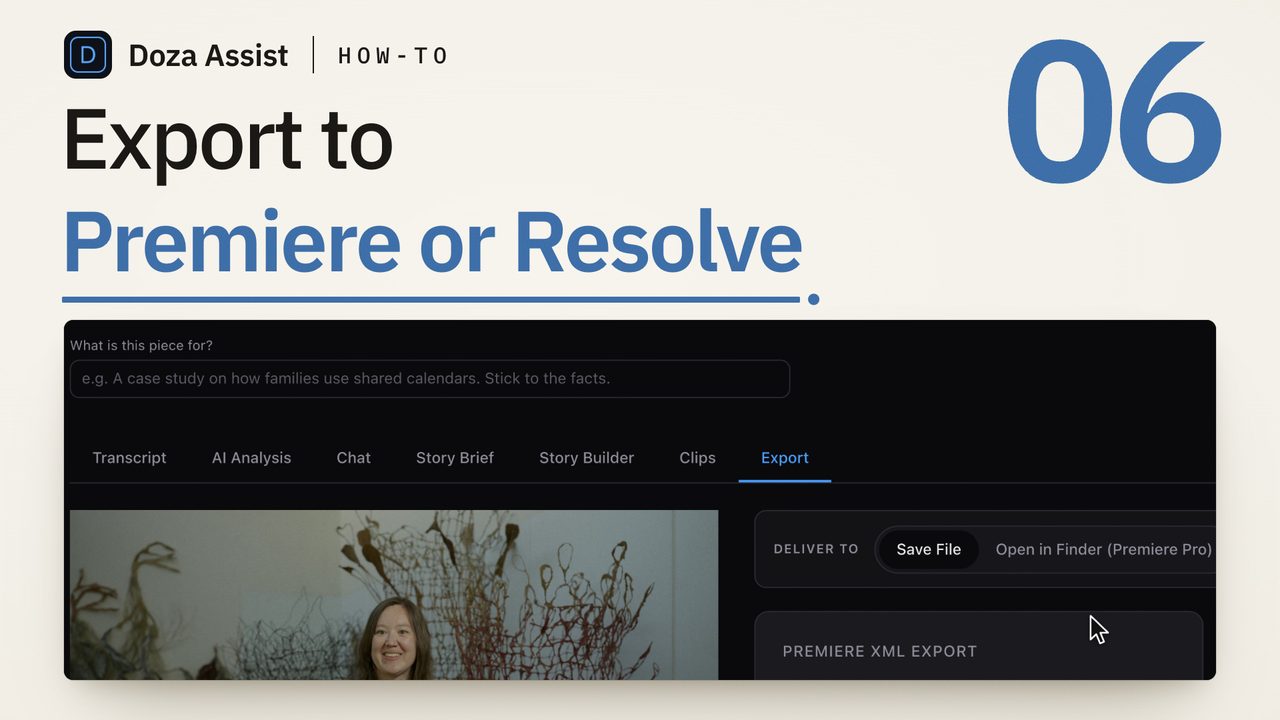
To import XML into Premiere Pro, choose File > Import, pick the .xml file and click Open. Premiere Pro reads Final Cut Pro 7 XML, builds a bin named after the file with the sequence and its clips inside, and links the media from the paths written in the XML. If clips come in offline, use the Link Media dialog to point at the folder. Markers and their notes arrive on the sequence.
Which XML does Premiere Pro import?
Two files in the world are called "Final Cut XML" and Premiere Pro reads one of them. It imports Final Cut Pro 7 XML, the older format with a .xml extension that opens with an xmeml tag. It does not import FCPXML, the format Final Cut Pro has exported since version 10, with an .fcpxml extension or an .fcpxmld package. Drop an .fcpxml on Premiere Pro and you get a file-format error. The glossary entry on FCPXML covers the difference.
The practical rule: a tool that exports for Premiere Pro should write Final Cut Pro 7 XML, the exchange format editing apps have shared for well over a decade.
What the file describes is a sequence: tracks, clips with in and out points, the path to each media file, clip names, markers with a name and a comment, and basic transitions. It does not carry Premiere-specific effects, color work or a multicam sequence. For a selects pass or a stringout that is exactly enough: the content decisions travel, and the finishing happens in Premiere Pro.
How do you import an XML into Premiere Pro?
- Leave the media where it was when the XML was written. The XML stores a path to every file it references. If the drive is mounted under the same name and nothing has moved, every clip links on import and you skip the relinking step. Move media after the import, not before.
- Open the project that should receive the sequence. You can import into an existing project; the XML adds to it and changes nothing already there.
- Choose File > Import and pick the .xml file. Premiere Pro reads it in a few seconds and creates a bin in the Project panel named after the XML, with the sequence inside and a clip for every media file it uses. Nothing is copied; the clips reference your originals.
- Open the sequence and look for offline clips. A clip Premiere Pro could not find shows as a red Media Offline slate, and on import it usually offers the Link Media dialog straight away. Zero offline clips means the paths lined up; all of them offline means the media moved or the drive has a different name.
- Relink with the Link Media dialog. Leave File Name and File Extension checked as the things to match, tick Relink others automatically, and click Locate. Point it at the first missing file and Premiere Pro searches the folder for the rest. If the dialog closed, select the offline clips in the bin, right-click and choose Link Media.
- Check the sequence settings against your master sequence. The XML carries a timebase, so the imported sequence is built at the frame rate the file described, usually the camera's. If your master sequence differs, select everything in the imported sequence, copy, and paste into a sequence made from your own preset.
- Read the markers. Open Window > Markers with the sequence active. Each marker from the XML is listed with its name and comment, and clicking one moves the playhead there. Those comments are where a transcript tool puts the note you wrote next to each select, so the list reads as a log of why each clip is in the cut.
- Open the handles. A sequence that came from a transcript cuts on the first and last word of each select. Every clip still references its full source file, so trim each edit outward to the breath before the line and the pause after it. Do it once, before you start rearranging.
Why do the clips come in offline?
Paths. Final Cut Pro 7 XML has no way to say "find this file wherever it is"; it says exactly where the file was. Three things break that: the media moved after the XML was written, a drive was renamed, or the XML was written on another machine where the same drive had a different path. The fix for all three is step five: Link Media, matching on file name, with Relink others automatically on.
Two cases need a second look. If the tool that wrote the XML read proxies with different file names than the originals, matching on file name finds nothing; relink to the proxies, or make the XML again from the originals. And if two files in different folders share a name, a bulk relink can grab the wrong one, so check the first few clips.
What lands where
The sequence lands in the bin named after the XML. Markers land on the sequence where the XML put them, name on the timeline and comment in the Markers panel. Clip names show on the clips themselves, so a sequence of fifty selects is legible without opening anything.
Cuts land on video track one and the first audio tracks. Check the audio once: an XML can describe a stereo recording as two mono tracks, so A1 and A2 may carry the left and right of one file rather than two mics. If the shoot put a lav on one channel and a boom on the other, that is what you want; otherwise mute the duplicate.
When the XML is not enough
The XML brings the cuts; it does not bring the words. To search the imported sequence as text inside Premiere Pro, transcribe it with Speech to Text once it is in place; how to transcribe an interview in Premiere Pro offline has the route.
And each clip in the XML points at one source. A multicam interview arrives as whichever angle the file names, not as a multicam sequence. If you need to switch cameras in Premiere Pro, build the multicam sequence from the camera files, then use the imported cut as the guide for which lines stay.
Doza Assist is a local-first AI editing assistant that runs the pass before the sequence. Drop in the camera files your Premiere Pro project uses; they are read in place, transcribed on your Mac with speakers labeled, and you mark your selects in the text. Set "Edit in" to Premiere Pro in the project header and Export writes a Final Cut Pro 7 XML with the cuts on V1 and A1/A2, clip names, markers and your notes, which you bring in with the steps above; because the files were never moved, step five is usually nothing. Nothing uploads at any point.
Common questions
Can Premiere Pro import FCPXML from Final Cut Pro?
Not directly. Premiere Pro reads Final Cut Pro 7 XML, the older .xml format; it does not read the .fcpxml or .fcpxmld files current Final Cut Pro exports. If a file with an .fcpxml extension fails to import, that is why. A tool exporting for Premiere Pro should write the older format.
Why are all my clips offline after importing an XML?
The media is not where the XML says it is. The file stores a full path to every clip, so a moved folder, a renamed drive or a different machine sends every clip offline at once. Select the offline clips, choose Link Media, match on file name with Relink others automatically on, and point at the media folder.
Do markers and notes come through the XML?
Yes. Final Cut Pro 7 XML carries sequence markers with a name and a comment, and Premiere Pro places them on the imported sequence. Open Window > Markers to read the comments and jump between them. Clip names come through as well and show on the timeline.
Can I import an XML into a project I am already working in?
Yes. File > Import adds a bin named after the XML with the sequence and its clips; nothing already in the project is touched. If its settings differ from your master sequence, copy the clips into one made from your own preset.
Doza Assist transcribes every interview locally, finds the strongest moments across all of them, then sends your chosen ranges to Final Cut, Premiere, or Resolve. Your video never leaves your Mac.
Free trial: every feature on your first 2 minutes — no account, no card · 30-day money-back guarantee · Requires a Mac with Apple Silicon (M1 or later)