How to transcribe an interview in Premiere Pro, offline.
Premiere Pro's Speech to Text runs on your machine once the language pack is installed. The exact route, the settings that matter, and where it stops being enough for interviews.
To transcribe an interview in Premiere Pro offline, download the language pack first (Preferences > Transcription), then open Window > Text, pick the Transcript tab and click Transcribe with the interview's language and speaker identification on. Once the pack is on the machine, Speech to Text does not need a connection. The transcript is searchable and you can cut from it, one clip or sequence at a time.
Does Premiere Pro transcribe offline?
Yes. Speech to Text started as a cloud feature, and plenty of editors still assume it uploads. It does not any more. Transcription runs on your computer once the language pack for that language is installed, and the transcript is stored with the project. That matters for footage under NDA, a source who was promised the recording would not leave the building, and a location with no internet. It also means the first transcription on a fresh install fails with a blank panel if the pack was never installed, which is the error most people are searching for.
The transcript Premiere Pro makes is a block of timed text in the Text panel. It can identify speakers and label them with numbers you then rename. You can search it, select a sentence and insert that range into a sequence, and strip pauses and filler words. That is a real transcript-based editing toolset, and for a single interview it is a good one.
The steps
- Install the language pack before you need it. Open Premiere Pro > Settings > Transcription and get the pack for the interview's language. Check the language list in your version; a language that is missing cannot be transcribed on the machine at all. Do this on a connection before you go on location.
- Decide which audio gets analyzed. For an interview with a lav on A1 and a boom on A2, pick the cleaner track rather than the mix. If the clip has a camera scratch track and a separate recorder file, sync them first, or transcribe the recorder's file on its own. A bad track is the main cause of a transcript full of nonsense.
- Transcribe the clip or the sequence. Open Window > Text and the Transcript tab. Select the clip in the Project panel, or open the sequence, and click Transcribe. Set the language, pick the audio track, and switch on speaker identification. A long interview takes a few minutes; you can keep working while it runs. To skip this step on future shoots, there is a preference to transcribe clips automatically on import.
- Rename the speakers and fix the names. The transcript labels voices as Speaker 1 and Speaker 2. Click a label, choose Edit speakers, and give each one a name; the change applies to every paragraph. Then read the first minute and search for the proper nouns you know will be wrong: company names, place names, the guest's surname. Correcting them once makes every later search work.
- Search for the lines you remember. The search box at the top of the Text panel filters the transcript you have open and highlights every hit. Click a hit and the playhead goes there.
- Cut from the text. In the source transcript, drag across a sentence and use Insert or Overwrite to put that range into the sequence as a three-point edit. In a sequence transcript, deleting text ripples the timeline. If you want a method for which lines to pick, read how to make a stringout.
- Export the transcript if the words need to leave Premiere. From the Text panel menu, export the transcript as a text file for a producer or a client. Caption export is a separate job on the Captions tab; the transcript itself is not a caption file.
What the transcript gets wrong, and why
Speech to Text is a general-purpose model. On a clean two-person interview with separate mics it is accurate enough to search. Where it slips is the same places every engine does: names, jargon, crosstalk and the first few seconds before the speaker model has a sample. The speaker identification is a form of speaker diarization: it clusters voices, it does not know who anyone is, and it can split one person into two labels when they move off mic or laugh. Expect to merge labels on anything longer than an hour.
The fix is the same in every tool. Rename the speakers once, correct the terms that will recur, and read in full only the stretches you plan to use.
When Premiere Pro's transcript is not enough
The limit is scope. A Premiere Pro transcript belongs to the clip or sequence you transcribed, and the search box searches that transcript. For one interview that is fine. For a documentary with thirty interviews, a podcast season or a week of conference panels, the finding problem is across files: which of the thirty people said the thing about the flood, and who said it best. Transcribing every clip gives you thirty transcripts to open one at a time. Nothing ranks a line against the rest of the corpus, and nothing tells you what the set of interviews adds up to.
The second limit is that the transcript is a timeline tool, not a document. Speaker names do not carry from one clip to the next, and there is no formatted quote sheet to hand a writer. If the transcript is a deliverable, or if your job is to find the story before anyone assembles a sequence, that pass is better done before the footage reaches the timeline.
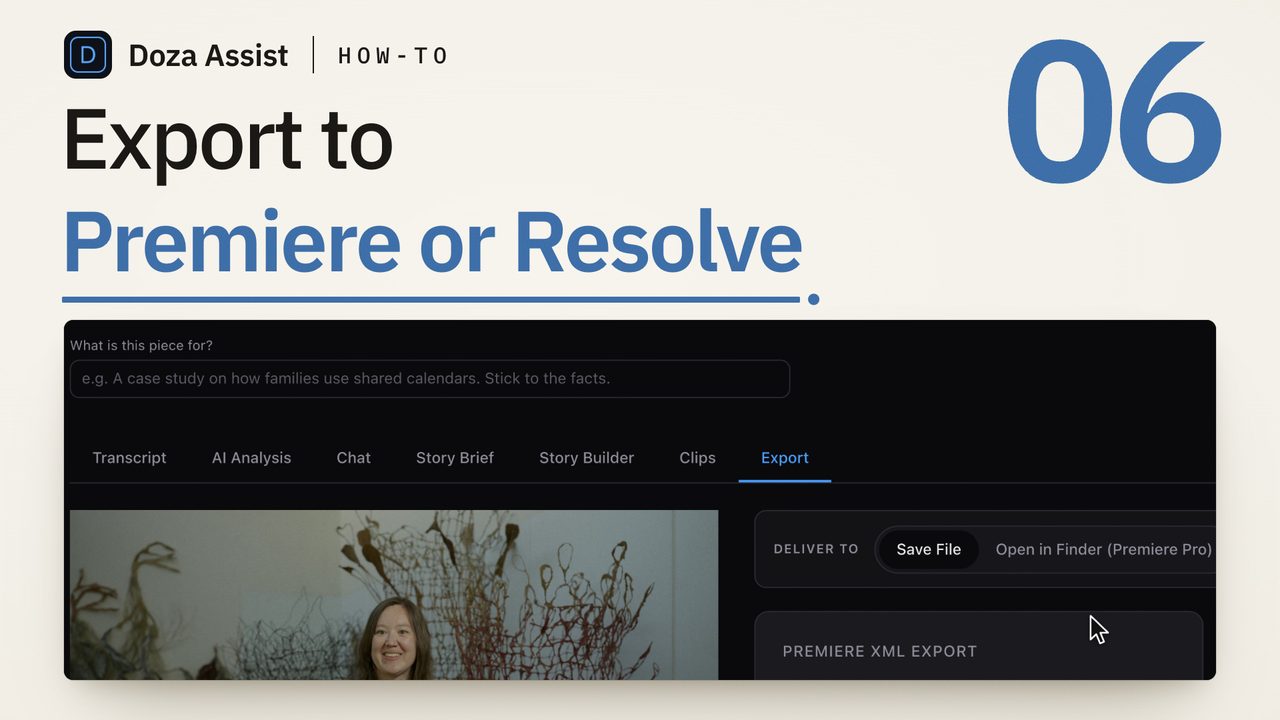
Doza Assist is a local-first AI editing assistant that runs the pass before the sequence. Drop in the same camera files your Premiere Pro project uses; they are read in place, transcribed on your Mac in any of 100-plus auto-detected languages, and labeled by speaker with AI Speaker ID, including crosstalk and panels. Search every interview in the project from one box, ask the footage questions in plain words and get timecoded clip cards back, and see the strongest soundbites ranked across the whole set rather than one clip. Set "Edit in" to Premiere Pro and Export writes an XML of your selects, cuts on V1 and A1/A2 with clip names, markers and your notes, which you bring in with File > Import; media relinks from its original paths. Premiere Pro's own Speech to Text stays useful for the sequence you build after that.
Common questions
Does Premiere Pro's transcription upload my footage?
Not once the language pack is installed. Speech to Text runs on your computer and the transcript is kept with the project. Getting the pack itself needs a connection, so install the languages you work in before a shoot where you will be offline.
Why is the Transcribe button greyed out or the panel empty?
Almost always the language pack. Open Settings > Transcription and check that the pack for your language is installed. The other common cause is a clip with no audio on the track you selected, for example a camera file whose sound is on a separate recorder.
Can Premiere Pro label who is speaking?
Yes, as numbered speakers, if you switch on speaker identification before transcribing. You rename the numbers afterwards. The labels can split one person into two or merge two similar voices, so check them on any long interview, and note that names you set in one clip do not carry to the next clip you transcribe.
Can I search across every interview in my project?
Not from the Text panel, which searches the transcript you have open. You can transcribe every clip and search them one at a time. Searching, ranking and summarizing across a whole set of interviews is the job of a transcript-first tool run before the edit, which is where Doza Assist sits in a Premiere Pro workflow.
Is the Premiere Pro transcript the same as captions?
No. The transcript is timed text you search and cut from. Captions are a separate track you create from the transcript on the Captions tab, with their own timing and line breaks for reading on screen. Make the transcript first; captions come from it later if you need them.
Doza Assist transcribes every interview locally, finds the strongest moments across all of them, then sends your chosen ranges to Final Cut, Premiere, or Resolve. Your video never leaves your Mac.
Free trial: every feature on your first 2 minutes — no account, no card · 30-day money-back guarantee · Requires a Mac with Apple Silicon (M1 or later)