How to connect Claude to Final Cut Pro.
Final Cut Pro has no MCP server, so Claude connects through an app beside it. Switch on access for one project, press Add to Claude Desktop, ask for selects.
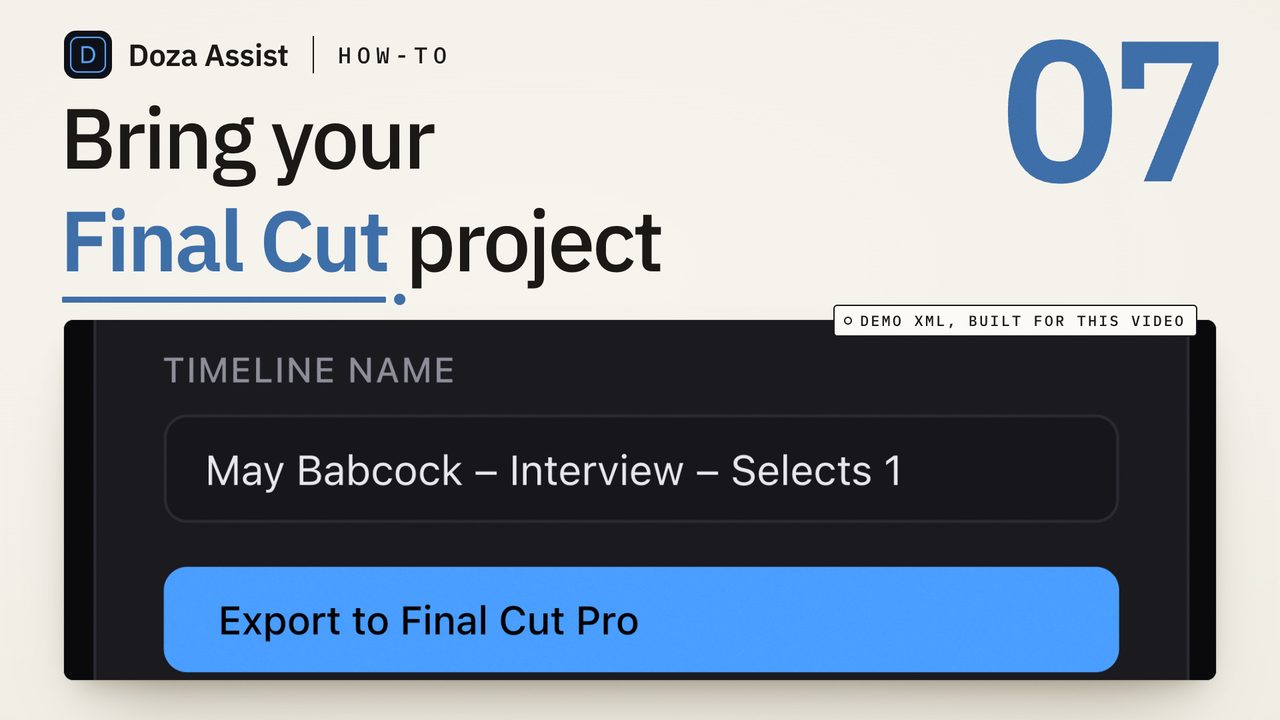
To connect Claude to Final Cut Pro, connect it to an app beside Final Cut, because Final Cut Pro has no MCP server of its own. Doza Assist has one: switch on AI assistant access for a project, press Add to Claude Desktop, and Claude can read that project's transcript, search it, add selects and build a stringout that opens in Final Cut Pro. Footage never leaves the Mac.
What is MCP, in one paragraph?
MCP is an open standard that lets an AI assistant use apps on your Mac. An app that supports it runs a small server; the assistant connects to that server and learns what it is allowed to do there, such as read a transcript or add a select. You make the connection once and from then on ask in plain words. Which apps an assistant can reach depends entirely on which apps run a server, which is why the first question is about Final Cut.
Does Final Cut Pro have MCP built in?
No. Final Cut Pro has no MCP server, so Claude cannot open a library, read the browser or cut a timeline in it directly, and nothing in Final Cut's preferences changes that. DaVinci Resolve Studio 21.1 ships with one. For Final Cut, the route is an app beside it that runs its own server and trades FCPXML with Final Cut, the same file Final Cut already exports and imports.
Doza Assist is that app for interviews and dialogue, and it is what the rest of this guide connects. The free guide the MCP workflow Final Cut doesn't have yet covers the whole episode setup around it; this page is the connection itself.
What can Claude do once it is connected?
Through Doza Assist's connector, a connected assistant can list the projects you have switched on, read a project's transcript with timecodes and speakers, search it, see the selects in the Clip Library, add its own selects, labeled "AI assistant" so you always know which are yours, and build a selects stringout you open in Final Cut Pro.
It cannot delete or change your clips, see your media files, see projects you have not switched on, or read your My Style profiles. You approve every step, and the cut still happens in Final Cut.
How do you connect Claude to Final Cut Pro?
- Install the Claude app for Mac and Doza Assist. The connection runs between those two apps, so both have to be on the Mac. Doza Assist needs Apple silicon, and the free trial runs every feature on the first 2 minutes of each file, which is enough to test the connection end to end.
- Export the interview from Final Cut Pro as XML. Select the project, or the multicam or synchronized clip in the browser, and choose File > Export XML. Do not drag the library bundle anywhere; the export is the file the next step reads. The export guide covers what to select and which version.
- Open the FCPXML in Doza Assist and transcribe it. Drop the file on the dashboard. The app reads the multicam or sync-clip spine, transcribes on the Mac and labels the speakers. This is the transcript Claude will read, so finish it, and rename the speakers, before you connect.
- Switch on AI assistant access for the project. It is off by default and per project. On the project page, open the gear menu and choose AI assistant access. Only projects you switch on are visible to a connected assistant; every other project stays invisible. On a collection page the same item switches every interview in the collection at once.
- Press Add to Claude Desktop. The button in the same panel hands the Claude app the connector. Claude asks you to confirm, and Doza Assist appears in its connector list. No config files, no restart. Claude Code, Codex, Cursor and VS Code connect with the command and config shown under Other assistants in the same panel.
- Ask a first request. In a Claude chat, type "list my Doza projects". The switched-on project comes back by name. Then ask for something real: "Read the transcript, find the three strongest moments about the move, and make them selects." The selects appear in the open project within seconds, labeled AI assistant, with a toast and a View button.
- Check the selects and send the stringout to Final Cut Pro. Play each one in Doza Assist and keep, trim or delete it as you would your own. Then export: a pre-cut timeline opens in Final Cut Pro automatically, with keyword ranges and chapter markers, and a multicam project comes back as a multicam with its angles. That is the stringout you cut from.
What leaves the Mac, and what does not
The media files never leave the Mac. The connection itself runs there, and the assistant cannot see your footage. The transcript text and selects of a switched-on project do go to the assistant, and Claude is a cloud service under its own terms, not part of Doza Assist. Access stays on until you turn it off. A project that must stay entirely private stays switched off, and a switched-off project is invisible to the assistant.
Doza Assist is a local-first AI editing assistant for interviews and dialogue, and the connector is its way of letting the assistant you already use read what it found. Transcription and AI Speaker ID run on the Mac, so the transcript Claude reads is made before anything is switched on. Claude's selects land in the Clip Library next to yours, where the 5-color highlighter and word-level trim apply to them too, and the export sends a pre-cut timeline straight to Final Cut Pro. The free guide start editing videos in Claude takes it from this first request to a repeatable episode, and the Final Cut Pro page shows the whole pass.
Common questions
Can Claude edit directly in Final Cut Pro?
No. Final Cut Pro has no MCP server, so no assistant drives it directly. The route that works is an app beside Final Cut that Claude can connect to and that trades FCPXML with Final Cut: Claude makes selects and builds a stringout there, and the timeline opens in Final Cut Pro for you to cut.
Does Final Cut Pro have an MCP server?
Not as of this writing. DaVinci Resolve Studio 21.1 has one built in; Final Cut Pro does not, so the connection goes through another app that exchanges FCPXML with it.
Is it safe to connect Claude to interview footage?
The footage never leaves the Mac, and the assistant cannot see media files at all. What it reads is the transcript text and selects of the projects you switch on, which go to Claude's own service under its terms. Access is off by default and per project, so a sensitive interview stays off and stays invisible.
Can I use Claude Code or Cursor instead of Claude Desktop?
Yes. Claude Desktop is the one-click add. Claude Code, Codex, Cursor and VS Code connect with the command and config shown under Other assistants in the same panel of Doza Assist, and read the same switched-on projects.
Can Claude cut a multicam to whoever is talking in Final Cut Pro?
That is Doza Cuts, a separate Mac app from the same maker. Export the multicam as XML from Final Cut Pro, drop it on the app, and it switches the episode to whoever is talking; Final Cut Pro gets live multicam cuts you can change in the Angle Viewer. It has its own optional local connection for Claude Desktop and Claude Code, off by default, to inspect a multicam, cut it, list recent cuts and open a cut.
Doza Assist transcribes every interview locally, finds the strongest moments across all of them, then sends your chosen ranges to Final Cut, Premiere, or Resolve. Your video never leaves your Mac.
Free trial: every feature on your first 2 minutes — no account, no card · 30-day money-back guarantee · Requires a Mac with Apple Silicon (M1 or later)