
I get the same question in different words every week: "I downloaded it, where do I start?" The user guide answers it, but nobody reads a guide on day one. So over the last few weeks I recorded the answer instead. The Doza Assist How-To series is eleven short videos, under eighteen minutes in all, on one real interview from start to finished timeline. They are all up now at doza.ai/tutorials.
Start with the three-minute one
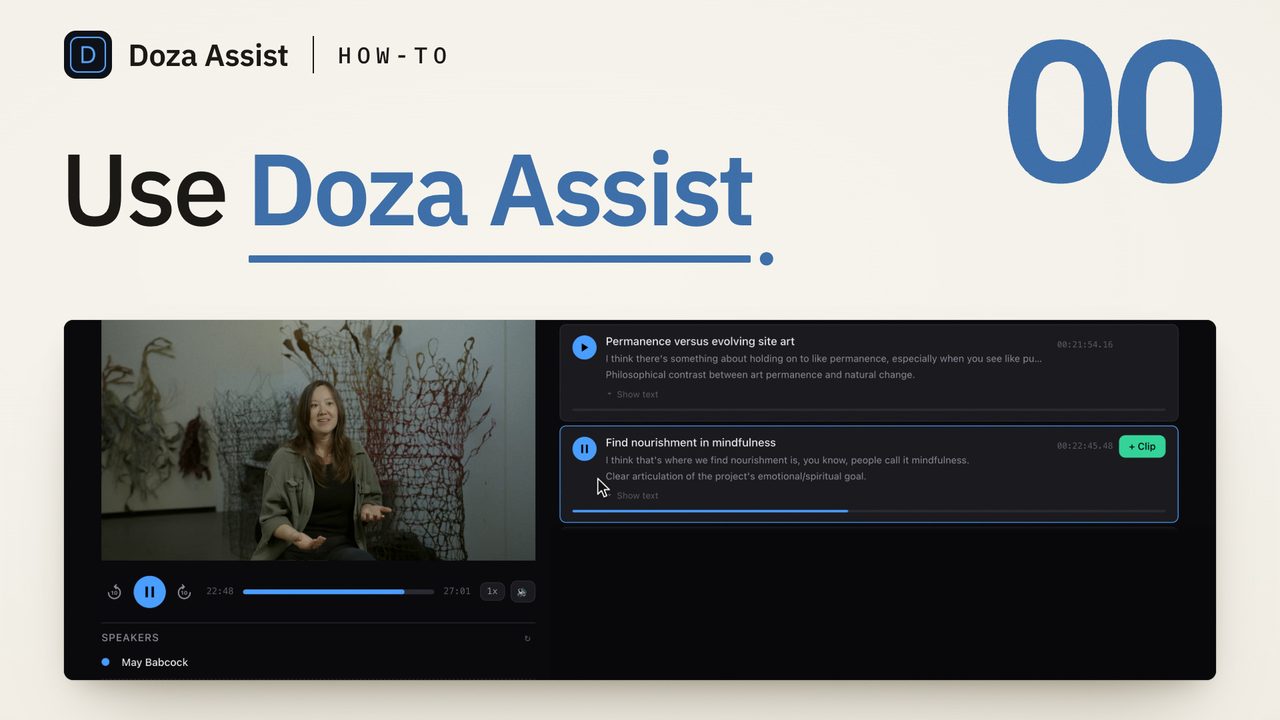
Film 00, How to use Doza Assist, is the whole workflow in order, and it is the one to watch first. It follows one interview through the seven tabs you will use every time:
- Import. Point Doza Assist at the interview file where it already lives. Nothing is copied and nothing is uploaded.
- Transcript. Transcription runs on your Mac, with speakers detected and named. Double-click any word to fix it.
- AI Analysis. The strongest soundbites, each with a line on why it works, plus story beats and social clips.
- Chat. Ask the interview a question in plain words. Every answer comes back as clips you can play and keep.
- Story. Say what the piece is for, pick a length, and Story Builder lays out a rough cut as story cards you can reorder.
- Clips. Everything you kept, trimmed word by word, with an audition preview.
- Export. A new timeline in Final Cut Pro, Premiere Pro or DaVinci Resolve, or a quote sheet, paper edit or transcript document.
Three minutes is enough to see how the pieces hand off to each other. After that, you do not need to watch the rest in order.
Then pick the job you have today
The other ten films are one job each, about a minute and a half apiece. They assume you have seen film 00 and skip straight to the part that is new. Watch the one that matches what is on your desk this morning.
- 01 · How to make a quote sheet automatically (1:31). Tag the clips you want quoted and Doza Assist drafts a press-ready quote sheet, one quote per clip with its timecode, as PDF, Word or Excel.
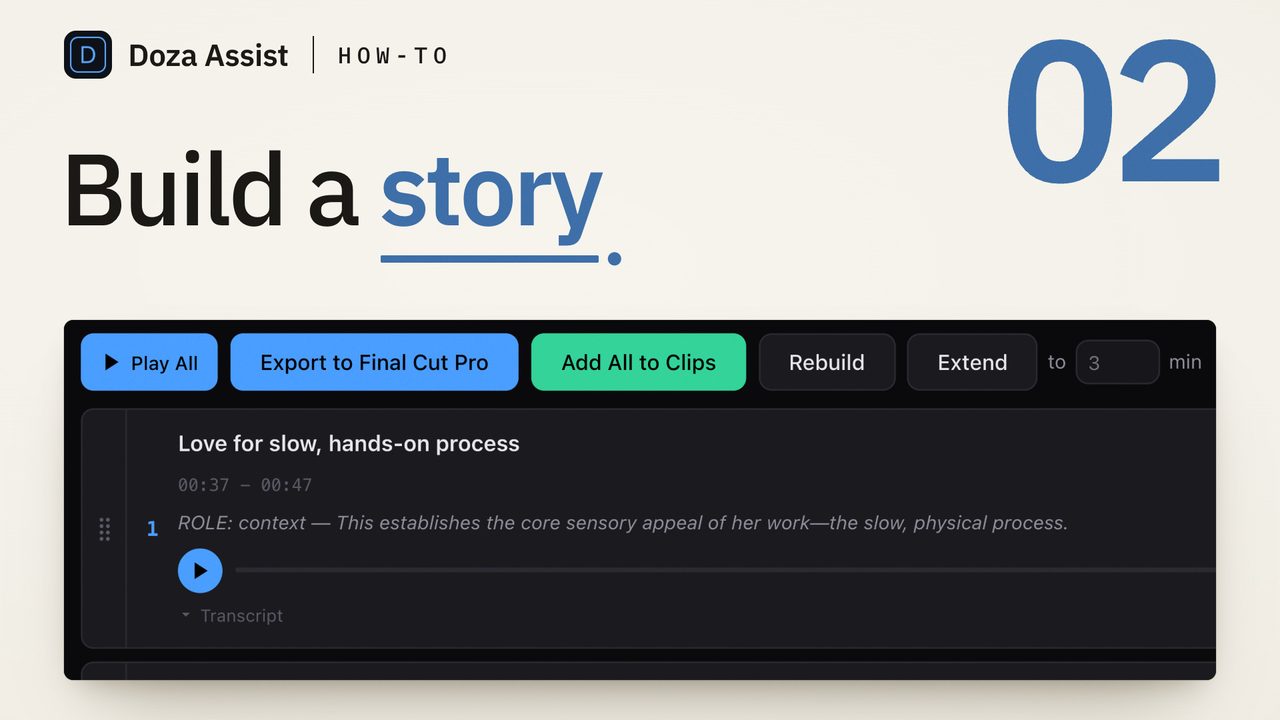
- 02 · How to build a story (1:25). Say what the piece is for, pick a length, click Build. Story cards you can reorder, play through and send to your editor as a new timeline.
- 03 · How to build a story across multiple interviews (1:38). Put several interviews in a collection, find the moments where they meet, and export one timeline with each clip cut from its own interview.
- 04 · How to share with collaborators and get their picks back as clips (1:32). Send one link. Your collaborator marks the words they want in a browser and says why, and each pick lands in your Clips with their name on it. Share is part of Doza Assist (Studio).
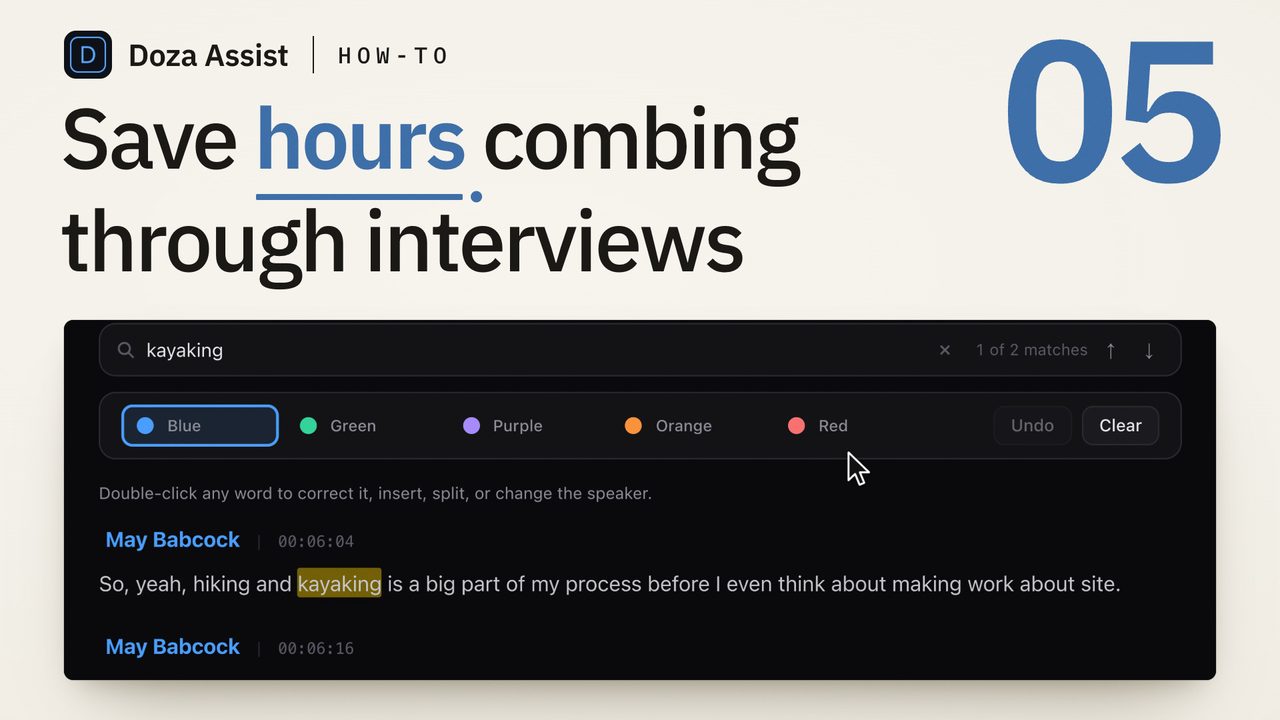
- 05 · How to save hours combing through interviews (1:29). Three ways to find the soundbites without scrubbing: search the transcript, read the reasons under the AI Analysis soundbites, or ask Chat.
- 06 · How to export your selects to Premiere Pro or DaVinci Resolve (1:35). Set Edit in to your editor and export: a Premiere XML with a marker at each select, or an FCPXML timeline for Resolve, the free version too.
- 07 · How to bring your Final Cut Pro project into Doza Assist (1:27). Export XML from the Final Cut browser, bring the clip in, mark your selects, and send them back as a new timeline cut from your own clip.
- 08 · How to transcribe an interview in another language (1:29). Set the language that is spoken and the language you read. The transcript stays in hers, the analysis comes back in yours.
- 09 · How to fix speaker labels in a transcript (1:20). When speaker detection puts two people under one label, double-click a word, choose Speaker, then New speaker, and name it.
- 10 · How to make a paper edit from your transcript (1:24). Turn your selects into a Word paper edit a producer can read without Doza Assist, with timecodes, speakers and words.
How to get the most out of them
Watch with the app open. Each film runs on a real project, and every step is one you can repeat on your own interview as it plays. The free trial runs every feature on the first two minutes of any file, so you can follow along before you buy anything.
Follow the caption into the guide. Under every video on the tutorials page there is a link to the chapter of the user guide that covers the same ground in writing. The film shows you the motion; the guide has the details you will want the second time.
You do not have to go looking for them. The right film now sits at the top of the page it belongs to. The Share film is on the Share page, the language film on Languages, the Final Cut round trip on the Final Cut Pro page, and the quote sheet film on the pages for comms teams, sports and journalists. The guide chapters carry them too. If you are reading about a feature, the demonstration is right there.
Hover to peek. On the tutorials page, resting your mouse on a card plays a few silent seconds of the film so you can tell whether it is the one you need before you click.
What is coming
The series is current with Doza Assist 1.1.1, which shipped last week. Film 07 shows the Final Cut browser import of single and synced clips that arrived in that release. As features land, the films that cover them will be re-recorded, and new jobs get new films. If there is a job you would like to see done in ninety seconds, tell me. That is how this list was made.
Common questions
Where are the Doza Assist tutorials?
At doza.ai/tutorials. Eleven videos: one three-minute overview of the whole workflow, then ten films of about ninety seconds, each on one job. The same films also appear at the top of the feature pages and in the user guide chapters they illustrate.
Which tutorial should I watch first?
Film 00, How to use Doza Assist. It follows one interview through import, transcript, AI Analysis, Chat, Story, Clips and Export in three minutes. The other ten assume you have seen it.
Do I need a license to follow along?
No. The free trial runs every feature on the first two minutes of any file, which is enough to repeat each step from the videos on your own interview.
Which editors do the tutorials cover?
Final Cut Pro, Premiere Pro and DaVinci Resolve. Film 06 covers exporting to Premiere and Resolve, and film 07 covers the round trip from and back to Final Cut Pro.