How to export a transcript from Premiere Pro.
Premiere Pro exports a transcript from the Text panel menu as a text file, a CSV or its own transcript file. What each keeps, and which timecodes you get.
To export a transcript from Premiere Pro, open Window > Text, show the Transcript tab with the clip or sequence transcript you want, and open the panel menu (the three dots at the top of the tab). Export to a text file for something a person reads, to a CSV for a spreadsheet, or as Premiere's own transcript file to move it to another project. Each keeps the speaker labels and a timecode per paragraph.
What leaves Premiere Pro, and what does not
Premiere Pro's transcript is a block of timed paragraphs that lives with the clip or sequence you transcribed. Exporting it writes those paragraphs out as a file. The speaker labels go with it, as you named them, and so does a timecode for where each paragraph starts. The words are the words Speech to Text heard, so anything you did not correct in the panel is wrong in the file too.
What does not leave is timing finer than the paragraph. Clicking a word in the panel moves the playhead to it, but the exported files mark paragraphs, not words. A producer reading the file can find a quote to the nearest paragraph and then has to scrub for the line. That is fine for notes and a problem for a paper edit, where every line needs its own In point.
The transcript is also not a caption file. Captions are made from the transcript on the Captions tab and exported from there, with their own timing and line breaks. If someone asked you for "the transcript", they almost never mean an SRT.
How do you export a transcript from Premiere Pro?
- Finish the transcript before you export it. Rename Speaker 1 and Speaker 2 to real names, and search for the proper nouns Speech to Text gets wrong: the surname, the company, the town. Every export is a snapshot, so a fix made after you send the file does not reach the person who has it. The route to a clean transcript is in how to transcribe an interview in Premiere Pro offline.
- Choose whose timecodes you need: the clip's or the sequence's. A clip transcript carries source timecode, the numbers a producer can read back to you and that match the footage in the bin. A sequence transcript carries the timecode of the cut, which changes the moment you move anything. For an interview that is not yet cut, export from the clip. For a locked cut that a writer is scripting around, export from the sequence. Open the one you want in the Transcript tab; the panel shows the transcript of whatever is selected or open.
- Open the panel menu. The Text panel's menu is the three-dot button at the top of the Transcript tab. The exports live there, not under File > Export, which is where most people look first. Your version may list two or three choices, and their names have shifted between releases, so read the menu rather than the memory of it.
- Export to a text file for a document someone reads. Choose the text file option and save. You get a plain .txt: each paragraph under its speaker label, with its start timecode. It opens in any word processor, where a producer can mark it up, and pastes into a script document without cleanup. It carries no formatting, so headers, page numbers and a title are yours to add.
- Export to a CSV for a spreadsheet. Choose the CSV option and save. Each paragraph becomes a row with the speaker, the start time, the end time and the text in their own columns. Open it in a spreadsheet, add a column for notes and one for keep or cut, and you have the beginnings of a paper edit, sortable by speaker.
- Export Premiere's own transcript file to move the transcript, not to read it. The .prtranscript option writes a file Premiere Pro can import onto the same clip in another project, from the same menu. It is not meant for people: open it in a text editor and you get structure, not a readable transcript. Use it to hand a transcribed clip to another editor on the same project without transcribing again.
- Open the file before you send it. Check that the speaker names are the ones you set and not the numbers, that the timecodes start where the clip's timecode starts, and that the first paragraph is really the first thing said.
Which export do you want?
For a producer or a client who will read and mark up the interview, the text file. For a writer or an assistant editor who will sort, filter and build a paper edit from it, the CSV. For another Premiere Pro project that holds the same media, the transcript file. For captions, none of these: that is the Captions tab.
There is one more limit to plan around. The Text panel exports the transcript you have open, one at a time, and the speaker names you set in one clip do not carry to the next. Thirty interviews is thirty transcripts to name, export and send, and thirty files on the producer's desk with no view across them. For one interview the native route is quick and complete. The hours go into the set.
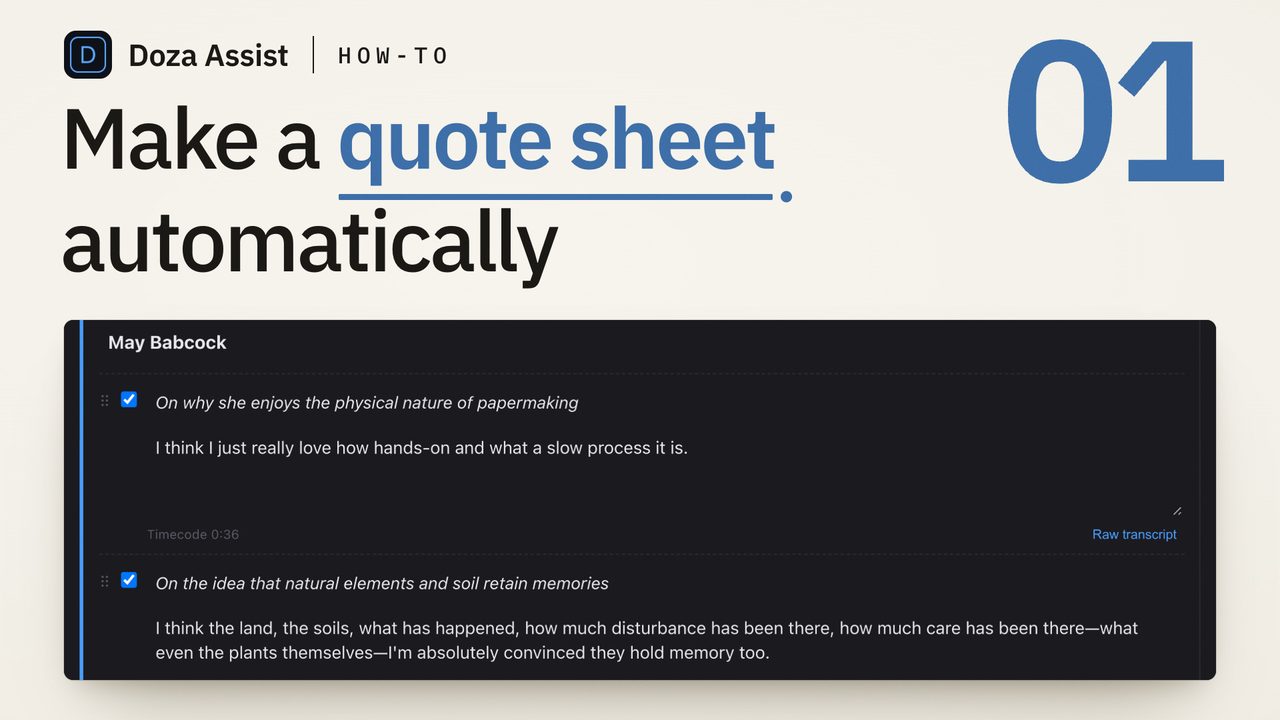
Doza Assist is a local-first AI editing assistant for interviews and dialogue, and its transcript is built to leave as a document. Drop in the same camera files your Premiere Pro project uses; they are transcribed on your Mac with word-level timing and every voice labeled by AI Speaker ID, and a speaker renamed once stays renamed across the project. Quote Sheet turns the transcript into a formatted pull-quote document, with the speaker's name and the timecode on each quote, as PDF or Word, and documents export as docx, pdf or xlsx. Batch transcribes a stack of files unattended, so a season's worth of interviews is one queue rather than thirty exports, and with the Studio plan, Share gives a producer a private link to highlight and comment in the browser, with their picks landing back in your project. Nothing uploads, and the Premiere Pro page shows where it sits beside the Text panel.
Common questions
Can Premiere Pro export a transcript with timecodes?
Yes. The text file and the CSV both carry a timecode for the start of each paragraph; the CSV adds the end time. Export from the clip transcript to get source timecode, and from the sequence transcript to get the timecode of the cut. Neither export marks individual words, so the timecodes land you on the paragraph, not the line.
How do I export a Premiere Pro transcript to Word?
Export it as a text file from the Text panel menu and open the .txt in Word, Pages or any word processor. Premiere Pro does not write a .docx itself, and the text file has no formatting, so the title, header and page numbers are yours to add before it goes out.
What is a .prtranscript file?
Premiere Pro's own transcript format. Export transcript writes one, and Import transcript on the same panel menu reads it back onto a clip or sequence in another project with the same media. It is for moving a transcript between projects without transcribing again, not a file a person reads.
Can I export transcripts for every clip in the project at once?
Not from the Text panel, which exports the transcript you have open. Each clip's transcript is exported on its own, and speaker names set in one clip start again as numbers in the next. Doing the whole set as one job is what a transcript-first tool run before the edit is for; see how to pull quotes from an interview transcript for what that document looks like.
Why do the timecodes in my exported transcript not match the clip?
Usually because the export came from the sequence, whose timecode is the cut's, not the footage's, or because the clip's timecode starts somewhere other than zero and the reader expected zero. Export from the clip for source timecode, and read transcript timecodes for editing for what has to match and why.
Doza Assist transcribes every interview locally, finds the strongest moments across all of them, then sends your chosen ranges to Final Cut, Premiere, or Resolve. Your video never leaves your Mac.
Free trial: every feature on your first 2 minutes — no account, no card · 30-day money-back guarantee · Requires a Mac with Apple Silicon (M1 or later)